EU Open Data in TopBraid EDG

Recently, we have been hearing from a number of organizations in Europe and the United States that want to make available a catalog of datasets similar to the EU Open Data Portal. In response to this interest, we decided to write a series of blogs on this topic:
- The first blog was about the EU Open Data Portal, its capabilities and its use of RDF technologies and, specifically, DCAT vocabulary.
- In this second blog we will show datasets from the EU Open Data Portal in a searchable interactive catalog in TopBraid EDG.
- In the next blog we will talk about basing your catalog on the TopBraid EDG ontologies for describing enterprise data, yet aligning it with DCAT.
The steps involved in creating this catalog in TopBraid EDG are:
- Establish an ontology in EDG that describes your datasets
- Define any control vocabularies you will use in describing datasets
- Upload or create data
With this done, your users can use Search the EDG to search and browse the datasets. For our example, we used several datasets that we downloaded in RDF from the EU portal and uploaded into EDG using its Import RDF functionality. EU datasets do not have any rdfs:labels and labels are important to the TopBraid EDG display, so we have generated labels from the values for dcat:title. With respect to the ontology, you can:
- Create an ontology in EDG, then upload the DCAT vocabulary from the W3C site. DCAT vocabulary is defined primarily in RDFS and TopBraid EDG uses SHACL. You can auto-generate SHACL property definitions for DCAT using Transform > Convert OWL Axioms to SHACL Constraints.
- Or you could keep the ontology empty, create a Data Graph in EDG, upload several representative datasets into it and then let TopBraid EDG auto-generate classes and properties from the data.
We used the latter approach since we wanted to get not just the generic DCAT ontology, but an ontology that reflects how the EU portal uses DCAT.
The screenshot below shows Search the EDG user interface in TopBraid EDG which, out of the box, gives you similar capabilities to the search pages of the EU Open Data Portal.
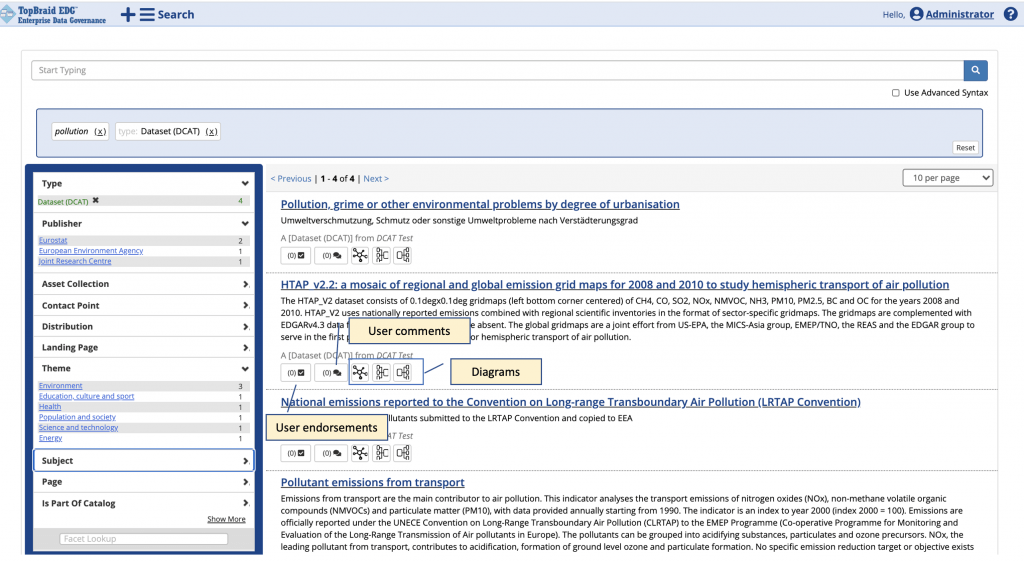
To get the search results shown above we entered “pollution” as the search string. We have less results than the number of results one would see in the EU portal since we only loaded about 100 different datasets.
In the TopBraid EDG search results page, the field for entering search terms is at the top of the page. Use Advanced Syntax option lets users enter Boolean searches, wildcards and other options described in these documentation pages.
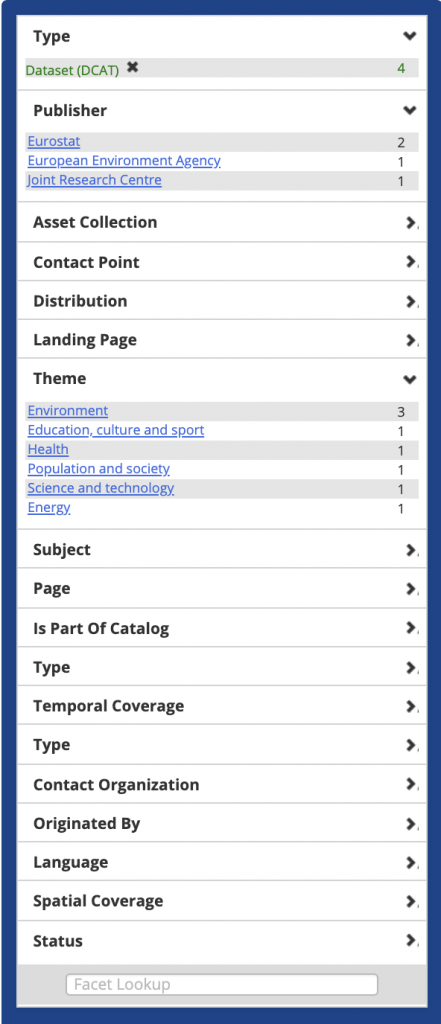
Facets are presented to the left of the search results. For facets, TopBraid EDG will use any relationship. It will dynamically select 10 most populated relationships for your search results. Show More link at the bottom of the facet list lets you see more facets if the result set has more than 10 types of relationships.
In our case, there were additional facets, beyond the 10 displayed in the first screenshot – as shown below.
A user could also look for a particular facet, if they know its name. They could then ask EDG to add just that one facet. These steps are demonstrated in the two screenshots below.
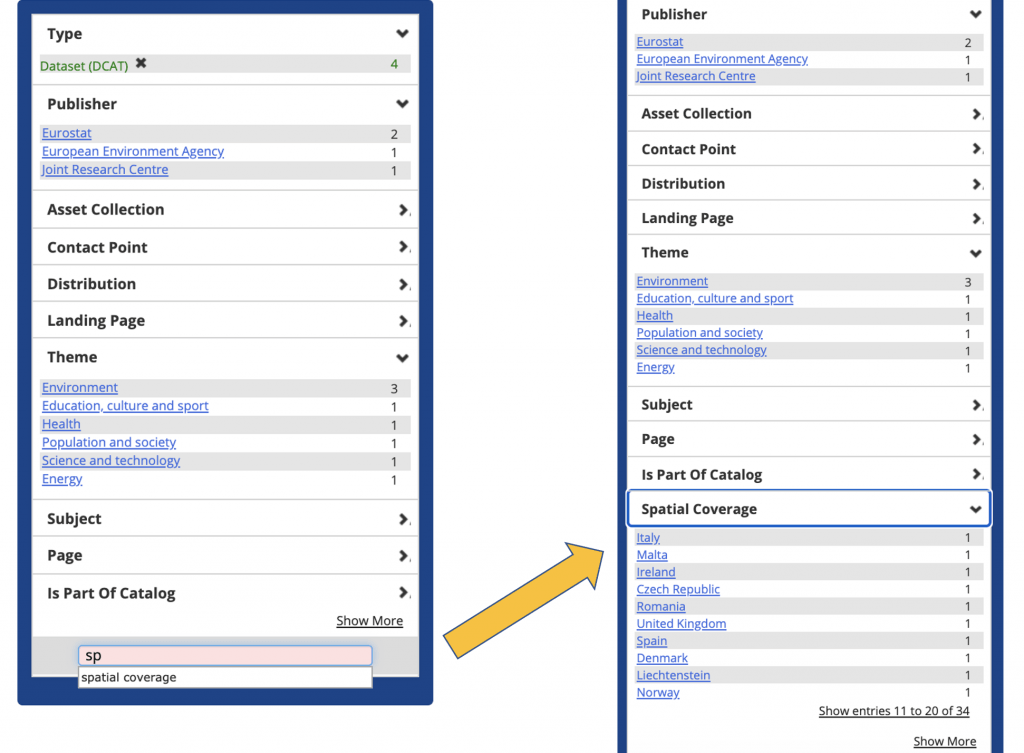
If you prefer certain facets over others, you can configure TopBraid EDG so that its default selection of facets would be, for example, exactly the same as on the EU portal — or any other default selection of your choice.
The search results page is also configurable. By default, it will show a title and a description for each dataset. In the EU portal, results page also displays what formats are available for download as well as the number of times a given dataset was viewed or downloaded. This can be easily accomplished in EDG through a configuration. Alternatively, you could elect some other data values (such as status, period or anything else) to be displayed directly on the results page.
As shown in the first screenshot, search results page in TopBraid EDG displays a number of icons below each result. These are:
- Endorsements – lets you endorse a dataset and/or see who have endorsed it
- Comments – lets you comment on a dataset and/or see comments from other users
- Diagrams – lets you visually explore information about a dataset. This ranges from a simple graph exploration to specialized lineage and impact diagrams.
As we have already mentioned, the user interface and capabilities shown and discussed here are fully out of the box. In addition to the configurations mentioned above, you can easily style the pages with the stylesheets, logos and colors of your choice.
Dataset PageWhen you click on a dataset, you will see a page displaying it’s information. A subset of the information is shown below.
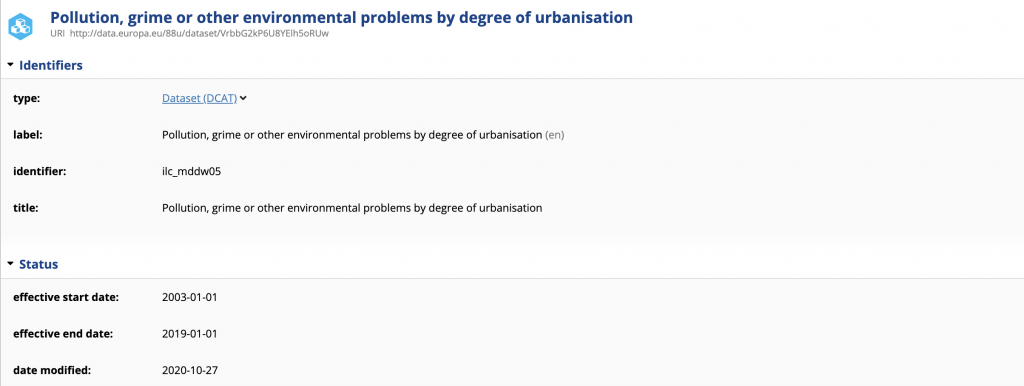
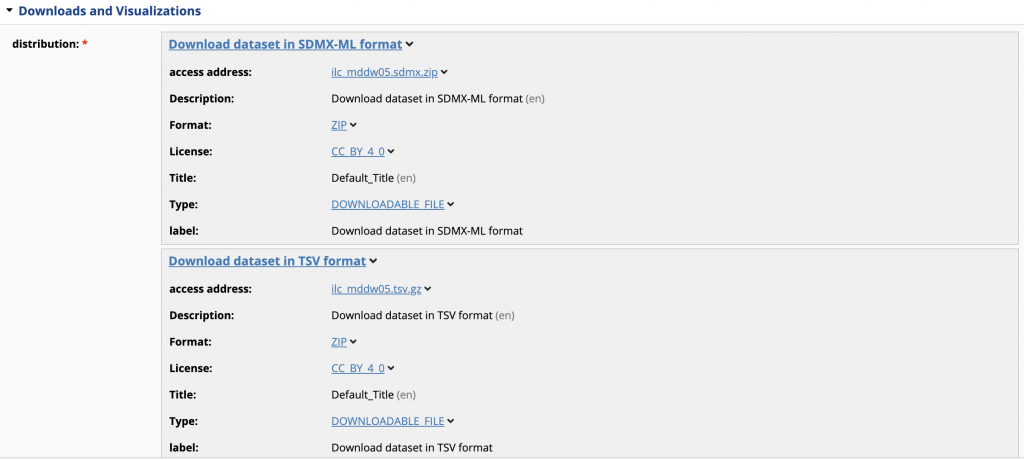
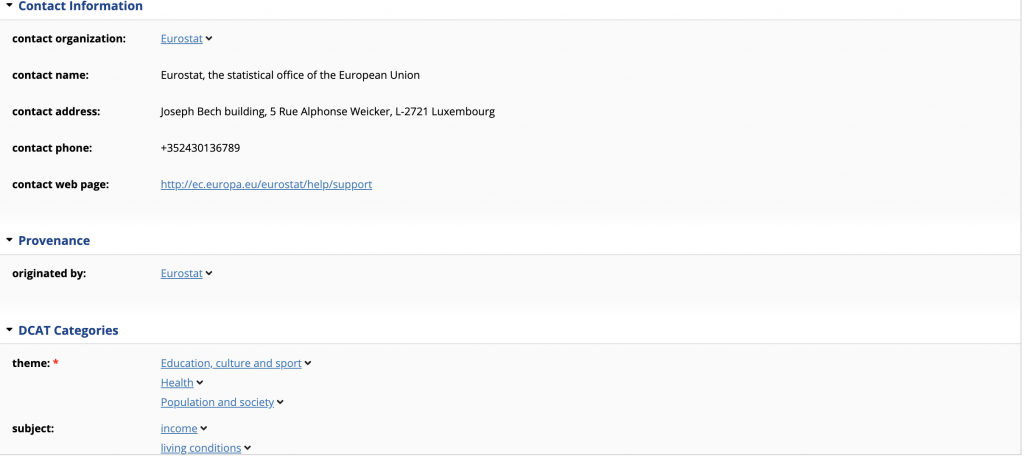
This page is auto-generated. The order in which fields are displayed and their grouping into sections is fully configurable. By default, all available information is displayed. This could be configured to only display certain fields. TopBraid EDG also lets you create role specific views so that some users will see more or different information than others.
Users that have edit permissions can not only see dataset information, but can also modify it.
Linked Data AccessTopBraid EDG lets you query all information using either SPARQL or GraphQL.
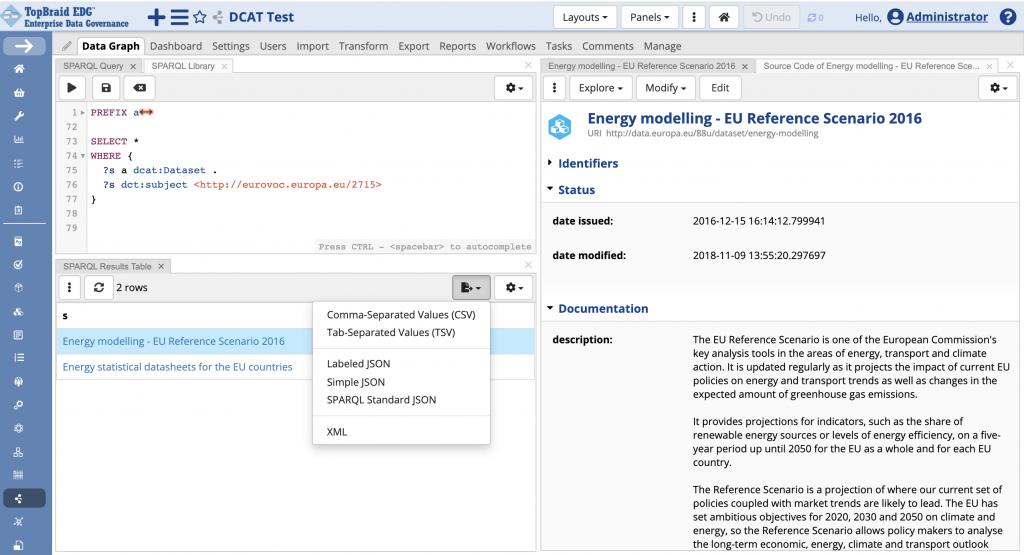
The screenshot above shows an example of SPARQL query in TopBraid EDG – selecting datasets with the “energy production” subject which has URI of <http://eurovoc.europa.eu/2715>.
Each dataset (and any asset in EDG) has a URI and information about an asset is readily available in RDF, with your choice of RDF serialization formats.
Adding Data to Your Catalog in TopBraid EDGYou can add new datasets to your dataset catalog in EDG, using one or more of the following approaches:
- Enter dataset descriptions – TopBraid EDG is not just a search and browse environment. As a full data governance solution, it lets users create and edit data using convenient, ontology driven forms.
- Use SPARQL Update to add dataset descriptions – SPARQL lets you not only read, but also write data.
- Use GraphQL to add dataset descriptions – TopBraid EDG GraphQL endpoint lets you add information. See more about this in our recent blog on GraphQL.
- Submit datasets themselves to EDG – EDG will auto-catalog them creating dataset descriptions from the data. This includes technical metadata and data profiling information. Users can then supplement it with business metadata. This feature requires alignment with the TopBraid EDG built-in data asset model. We will discuss model alignment in our next blog.
- Import dataset descriptions – we used Import RDF because we had dataset descriptions in RDF. If you have a spreadsheet with the information about datasets, you could also import it using Import Spreadsheet
Key aspects of a dataset descriptions use controlled vocabularies. These capture commonly used entities such as:
- Organizations
- File Formats
- Status Codes
- Update Frequencies
- Topics – such as themes and data subjects used to categorize data
As you create your data catalog, you will need to establish relevant taxonomies, reference datasets and/or enumerations or authority files. In case of the EU portal, we used its SPARQL endpoint to query for and export these vocabularies.
We used this downloaded data to create in TopBraid EDG two reference datasets, Countries and Languages, and a Taxonomy of the Eurovoc concepts to be used as subjects characterizing datasets. We used Enumerations in EDG to capture smaller sets of controlled values such as file formats and periodicity of updates.
The screenshot below shows a fragment of the Eurovoc vocabulary in EDG.
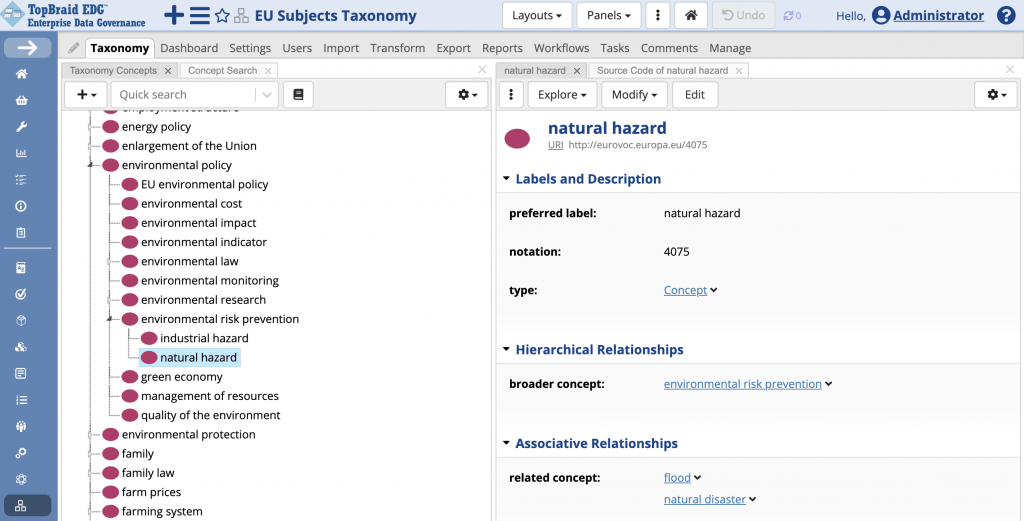
Since all information in a Knowledge Graph captured by EDG is connected, we can easily see and/or query for all datasets that are, for example, about “natural hazards”, then navigate to a concept related to “natural hazards” and see all datasets associated with a related topic.
In ConclusionIn this blog we have demonstrated a simple implementation of a dataset catalog in TopBraid EDG, uploading dataset definitions from the EU Open Data Portal.
In the next blog, we will explore pre-built dataset models in TopBraid EDG, discuss why you may want to base your catalog on the EDG data assets ontology and discuss transformation EDG and DCAT models.